 Jawad Abdullah
Note-taking is something we all do in some capacity. No matter if you need to write lists, copy down a phone number, or take detailed notes on a discussion or class, there’s a note-taking app out there that’s for you. The right note-taking app should simplify your workflow, and help you keep things organized. There’s a wide range of options now for a note-taking app; some are ideal for desktops, while others are designed to be used with phones and tablets. There are even some new apps that I’ve included that have been featured by Apple and have just been released to the public.
The right note-taking app will allow you to seamlessly jot down or dictate your notes across multiple platforms and have them synchronized and ready to go from anywhere. An even better hub of thoughts should also have organization systems that make it easy to search for and find your notes so that you can quickly reference information whenever you need it.
Notion
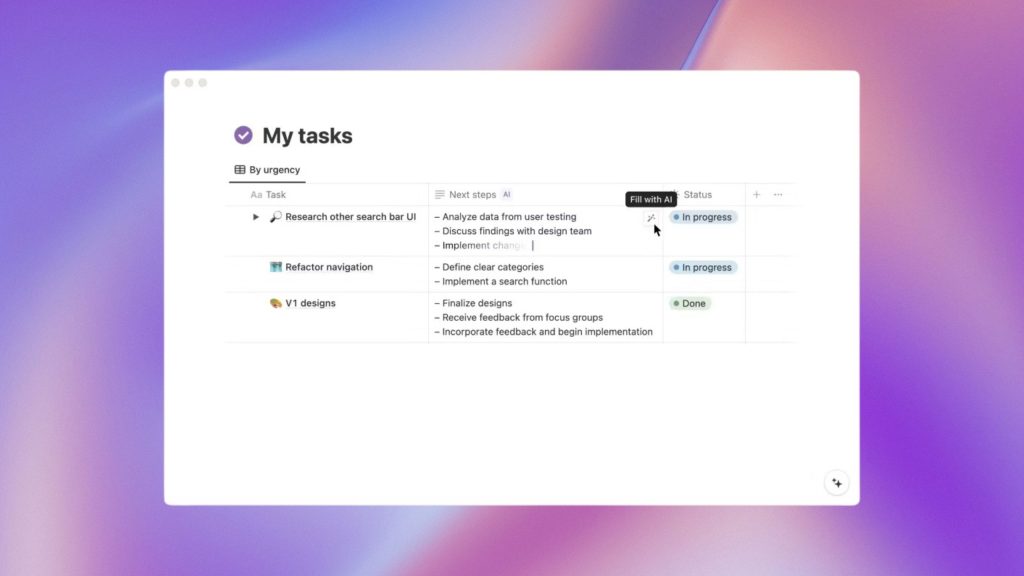
If you’ve worked for a startup or have worked on a technical team, there’s a good chance you have interacted with Notion. I’ve used Notion both in a job setting, but I’ve also used it as a digital journaling tool. It’s one of the most flexible note-taking apps that I’ve tested, and if you’re willing to spend time on learning all the ins-and-outs, Notion can do nearly anything you want it to as a note-taking app.
Pros
- Wide ranging use cases
- Different templates for different uses
- AI integration
Cons
- Steep learning curve
Notion is built with blocks of your notes. It’s easy to create your own Wiki, to-do lists, or daily or weekly planner with Notion thanks to the block system of the UI. Notion runs in your browser, so it’s usable from anywhere, and you can share anything you create with any other Notion users. It’s free to use, but if you want to bring in more than 10 people to your Notion, or create private pages, you can pay for Notion starting at $8 a month.
Bear
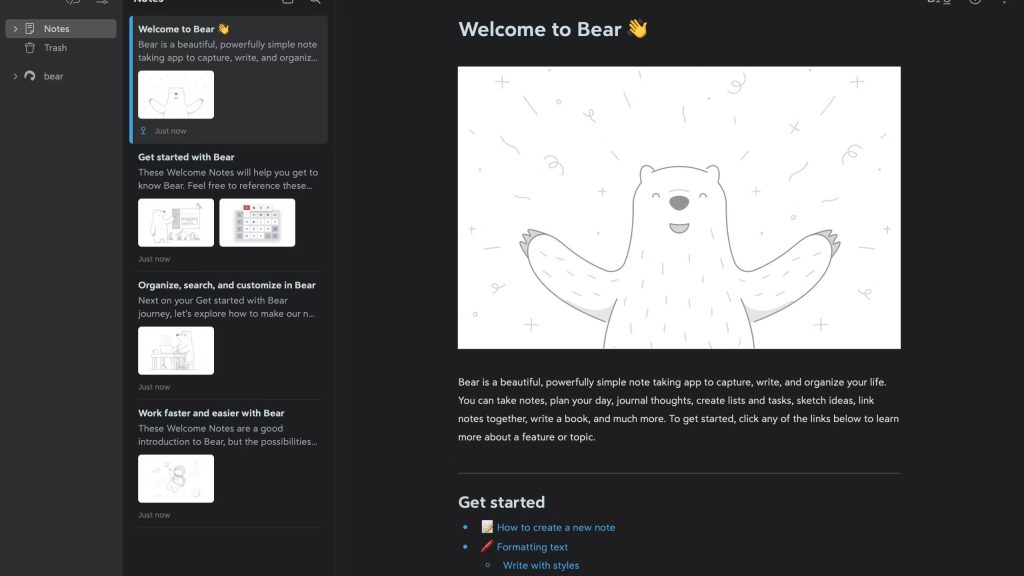
Bear is a great option for anyone who wants a more feature-rich note-taking app for iOS devices and Macs. The killer feature of Bear is that it allows you to write in Markdown (a formatting tool that allows you to format text in real-time) and tag each note to keep your thoughts neatly organized. You don’t have to use the Markdown feature, though. Bear is easy to use, and it’s simple to organize your notes your own way. There’s also pen support, so you can use the Apple Pencil natively in Bear.
Pros
- Markdown text editing support
- Apple Pencil support
- Intuitive tagging system for organization
Cons
- Only compatible with Apple products
I really appreciate how easy using the Apple Pencil is with Bear when compared to Apple’s own Notes app. You don’t have to create any extra fields to draw with the pen, and the app’s response to the pen is great. Bear can be used for free, but the free version limits your exports to just .TXT, Markdown, and Textbundle files. The payment tiers for Bear are a bit confusing, but for $3 a month or $30 a year, you can export your notes to nearly any format, including ePUB and OCR. The paid version also includes iCloud syncing, so your notes can go anywhere with you.
Microsoft OneNote
Microsoft’s OneNote is my favorite, hands-down, and it’s the note-taking app that I’ve used the most. OneNote is my daily driver for both my professional writing, but it’s also what I use to draft short stories and jot down daily reminders. It’s not the snazziest note-taking app available, but if you’ve used Microsoft Word, then OneNote’s interface, which features the same “ribbon” bar, should feel comfortable to you. Best of all, you can use OneNote with a free Microsoft Account.
Pros
- Free to use
- Supports handwriting input from tablets
- Cross platform support on iOS, Android, and Mac
Cons
- Works best within Microsoft’s app ecosystem
The free version of OneNote will provide you with all the features you’ll need, including the ability to cross-sync your notes across Windows, Android, macOS, iOS, and even iPadOS. You will need to pay extra if you want more than the 5GB of allotted storage space or if you want to export your OneNote files to Office Word or Excel. If any of these apply to you, you will need to pay for a Microsoft 365 account, which starts at $7 per month, but you do receive the rest of Microsoft’s 365 productivity suite.
Google Keep
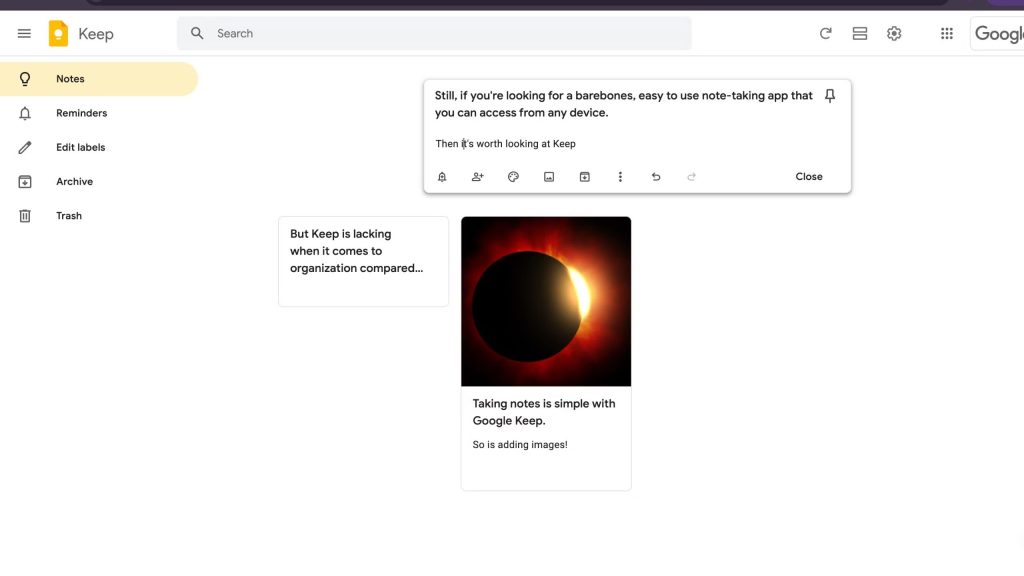
If you are looking for a simple and lightweight note-taking app or one that doesn’t have a steep learning curve with a ton of features, consider Google Keep. Google Keep can be accessed from any device and is a wonderful note-taking app for jotting down quick notes or for creating daily to-do lists. You can input images into Keep notes and links with ease, and Keep is integrated with the rest of Google’s ecosystem.
Pros
- Easy to use
- Totally free
- Cross-platform
Cons
- Lack of organization features
- Google Docs has better integration
Keep is accessible directly from Gmail, making it easy to jot down quick bits of information from emails. You can also draft writings in Keep and export them directly to Google Docs, saving time in the writing process. This is how I use Keep, and while it’s not my daily driver in the way OneNote is, it’s still in my rotation of apps. It’s nice being able to copy down important dates, phone numbers, or names from Gmail without having to open a separate window. There’s no fee for using Keep, but do keep in mind that your Keep notes will impact your overall Google account storage, so if you have a lot of already-existing Sheets and Docs, you may need to pay for more Google storage.
Obsidian
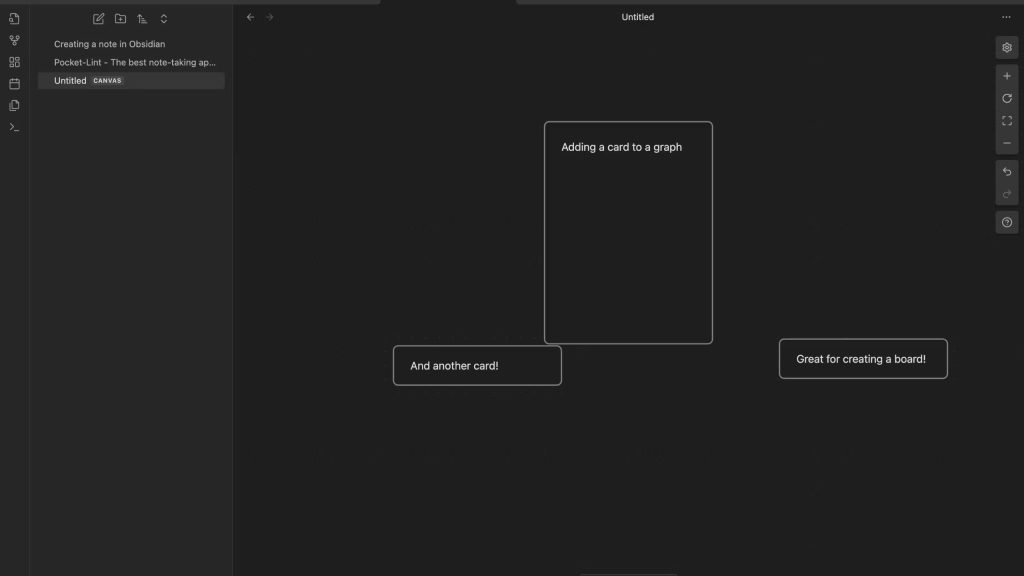
Obsidian is the most feature-rich note-taking app on this list, but it’s also the most difficult to learn. It shines by locally saving your notes, eliminating the requirement for an internet connection that most of the other apps on this list have. It also keeps your note secure, but security always comes at a cost, and that mainly translates to how difficult Obsidian is to learn.
Pros
- Free to use for individuals
- Graph notes
- Wide range of free plug-ins
Cons
- Difficult learning curve
There’s a ton you can do with Obsidian. You can make a nesting doll of your notes, graph them, and organize connections within a web design. You can also take advantage of the hundreds of free plug-ins that are available for Obsidian. Obsidian’s best feature is its customizable features. You can make things look however you wish, as long as you are willing to learn how to master the app.
I’ve spent a lot of time with Obsidian, and while I haven’t mastered the app by any means, I have gotten a taste of just how useful and deep Obsidian features go. I’ve used Obsidian to draft stories, but where I’ve really seen it shine personally is with long-form writing. Obsidian is a great tool for storyboarding thanks to its graphing feature, and it’s my preferred method of using the app.